Manage Freezers and Racks
Use this page to browse or maintain freezer records, organize racks, and place portable-storage boxes into freezer slots. Start in your AI Agent when you want to locate a box, inspect freezer capacity, or prepare a governed assignment.
Searching and viewing freezers is read-only. Creating a freezer, updating its temperature or location, or assigning a box to a rack slot is a write task and requires an approved change set when performed through the AI Agent.
Before you start
Section titled “Before you start”You need:
- the correct Culsma PAWS workspace selected;
lab.writeaccess and an authorized workspace role for changes;- the exact freezer and box identifiers; and
- the intended rack level, rack number, and slot number for an assignment.
For a new freezer, confirm its name, operating temperature, and physical location. A freezer name becomes part of its identity and cannot be renamed through the normal update workflow.
Start in your AI Agent
Section titled “Start in your AI Agent”For a read-only freezer check:
Use Culsma PAWS to find freezer [FREEZER NAME]. Show its recorded temperature, physical location, racks, occupied slots, and available capacity. Do not change any data.To prepare a box assignment:
Use Culsma PAWS to assign box [BOX BARCODE] to freezer [FREEZER NAME], rack level [LEVEL], rack [RACK NUMBER], slot [SLOT NUMBER]. Resolve the exact box and freezer, show the box's current freezer slot and the target occupancy, and prepare a PRODUCTION preview only. Stop for my approval before commit.The AI Agent should show the canonical freezer and box identifiers, current and proposed locations, target slot, all affected records, warnings, and change-set expiry.
Review a freezer change
Section titled “Review a freezer change”| Preview item | What to check |
|---|---|
| Freezer | Exact name and canonical identifier, workspace, temperature, and physical location. |
| Box | Exact barcode or canonical identifier and current freezer location. |
| Target | Correct level, rack number, slot number, and current occupancy. |
| Movement | Any removal from a previous freezer slot is shown explicitly. |
| Side effects | All freezer and portable-storage records that will change are listed. |
| Physical state | The freezer, rack, slot, and box in front of you match the preview. |
Committing a slot assignment moves the box out of its previous recorded freezer slot before assigning the new one. Do not approve until that side effect is intended.
After approval, ask the AI Agent to fetch the target freezer and box again. Confirm the recorded slot and complete location path.
Supported freezer changes
Section titled “Supported freezer changes”Through the governed AI workflow you can:
- create a freezer with a name, temperature, and optional location;
- update an existing freezer’s temperature or physical location; and
- assign one portable-storage box to a specific freezer rack slot.
Freezer identity and name are not ordinary editable fields. Freezer deletion is not a normal daily workflow: it can detach boxes and must be handled as a separate, explicitly reviewed operation.
Optional: Manage freezers in Web/App
Section titled “Optional: Manage freezers in Web/App”Use Web/App when the visual rack layout is the clearest way to complete the task. Web/App saves are direct and do not use the MCP change-set approval boundary.
- Open Freezers from the main menu.
- Select an existing freezer or create a new one with its name, temperature, and location.
- Open the freezer and review its rack levels, dimensions, and usage indicators.
- Use the edit action to update the freezer temperature or location.
- Select Add Rack when a new rack is required, then confirm its level and dimensions.
- Open the intended rack to inspect its numbered slots.
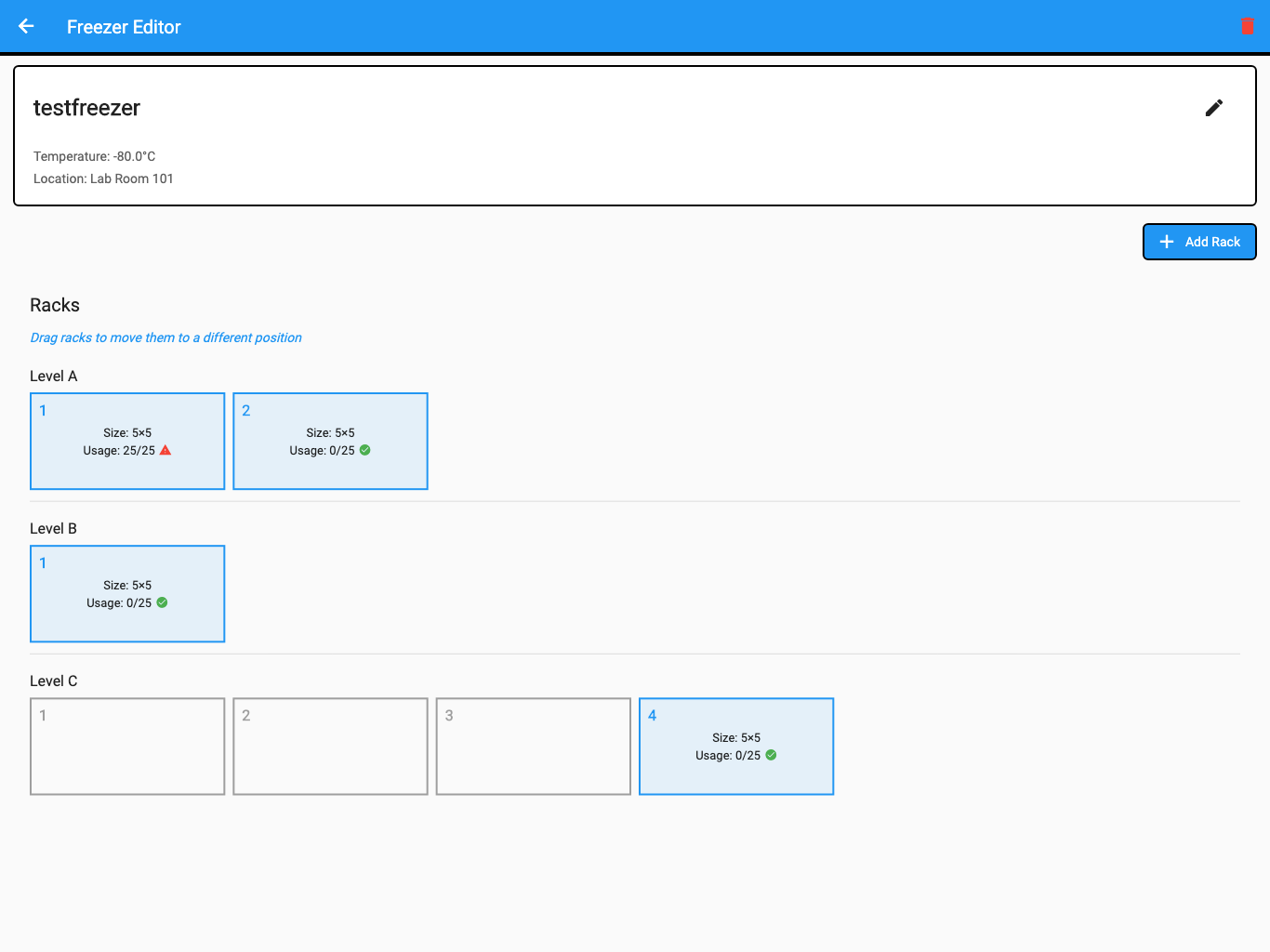
The screenshot uses synthetic test data.
To assign or move a box, search for the exact box in the Rack Editor, select the destination slot, review the confirmation, and save. Reopen the rack after saving and verify the box appears in the intended slot.
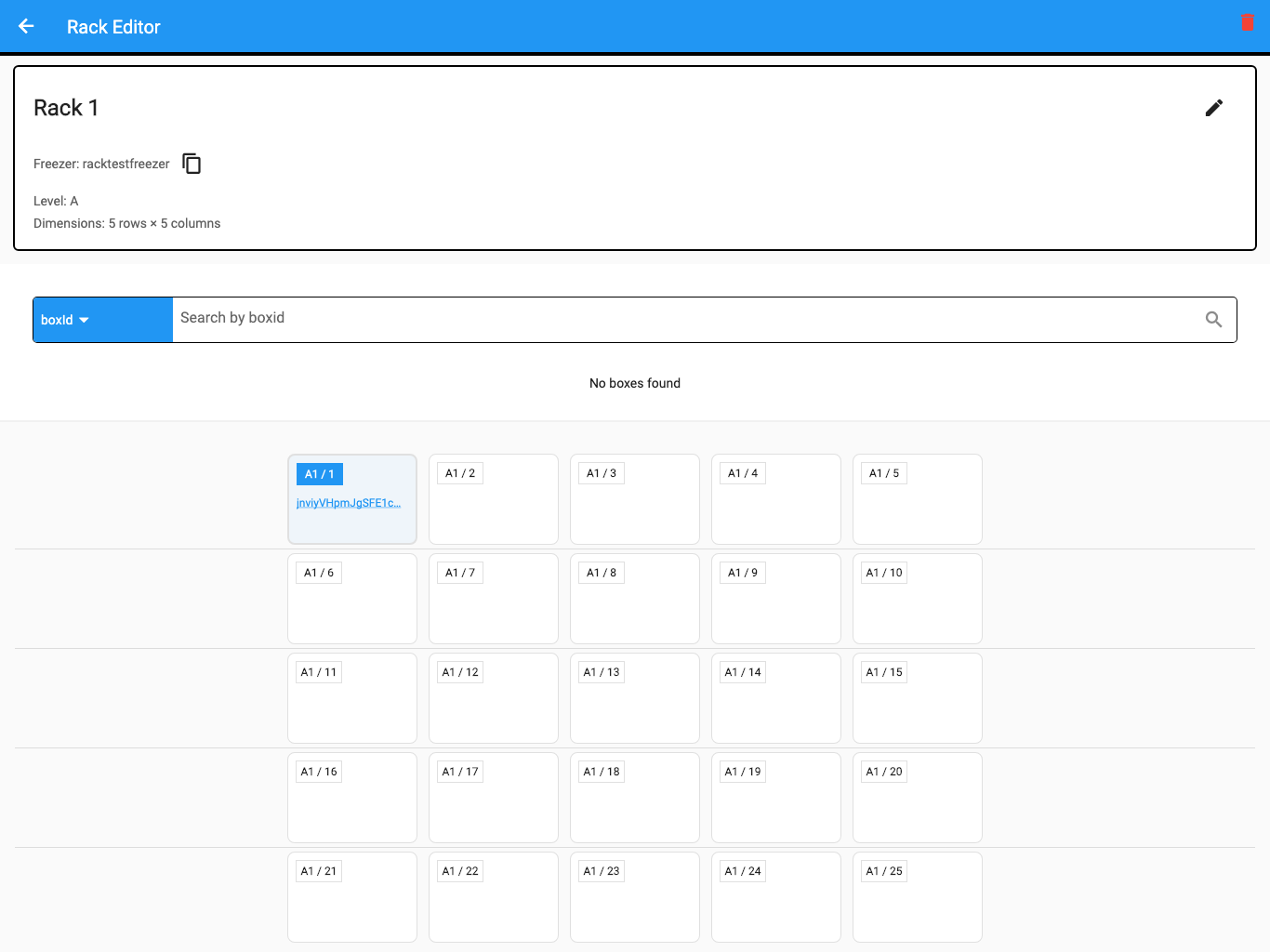
The screenshot uses synthetic test data.
Coordinate the recorded update and physical move according to your laboratory procedure. If either part fails, stop and mark the discrepancy until the physical and recorded locations agree.
More requests to try
Section titled “More requests to try”List freezers in this workspace with their temperature, physical location, rack count, and available slot capacity.
Prepare a preview to create freezer FZ-03 at −80 °C in Lab Room 204. Do not commit it.
Prepare a preview to update freezer FZ-02’s physical location to Lab Room 204. Show the current and proposed values and wait for approval.
Find where box PBMC-04 is currently stored, then show available slots in freezer FZ-02 without moving it.
If the freezer task cannot continue
Section titled “If the freezer task cannot continue”| What you see | What to do |
|---|---|
| Several freezers or boxes match | Add the exact name, barcode, or canonical identifier; never approve a partial match. |
| The target slot is occupied | Select another slot or explicitly review the intended displacement before continuing. |
| The box is already in another freezer | Confirm that the preview includes removal from the previous slot. |
| Rack dimensions or level are wrong | Correct the rack visually before assigning boxes to it. |
| The freezer changed after preview | Reopen the rack and generate a new preview from current state. |
| Physical and recorded slots disagree | Stop normal handling of the box and prepare a verified correction. |
| The temperature or location is incorrect | Update only the incorrect field and verify the freezer again. |
| A delete action would detach boxes | Cancel unless the complete impact has been separately reviewed and authorized. |
You have completed the task when the freezer record, rack layout, assigned box, physical slot, and Culsma PAWS read-back all agree.
For positions inside a box and label printing, continue to Manage Boxes, Samples, and Labels.