Getting Started
Use this guide to set up Culsma PAWS for the first time. By the end, you will be able to ask your AI client for a known sample, see its recorded location, and confirm the result in the Culsma PAWS web or app interface.
Culsma PAWS uses MCP so that the same workspace and permissions can be used from different AI agents. This internal pilot guide covers OpenAI Codex and Claude Code. If your organization has approved another MCP client, your coordinator will provide the corresponding setup instructions.
Before you start
Section titled “Before you start”You need:
- the Culsma PAWS web or app link supplied by your organization;
- the email address registered for your Culsma PAWS account;
- an invitation to the correct workspace, sent to that same email address;
- a supported AI client; and
- the barcode of one sample that already exists in the workspace.
1. Activate your account
Section titled “1. Activate your account”During the internal pilot, your coordinator registers your email before you activate the account. The current Culsma PAWS sign-in screen does not offer public self-registration.
If you already sign in with an email and password, continue to Join your workspace.
- Open the Culsma PAWS link supplied by your organization.
- Select Set or reset password.
- Enter your registered email address and select Send password link.
- Open the password email. If you do not see it, check your spam or junk folder.
- Follow the link and enter the new password twice. The password must contain at least eight characters.
- After Password set appears, return to Culsma PAWS and select Back to sign in.
- Sign in with the same email address and your new password.
2. Join your workspace
Section titled “2. Join your workspace”- Open the workspace invitation sent to your registered email address.
- Follow the invitation link. Sign in with the invited email address if requested.
- Check the workspace name, your assigned role, and the invited email shown on the Invitation page.
- Select Accept invitation.
- When You’ve joined workspace name appears, select Go to workspace.
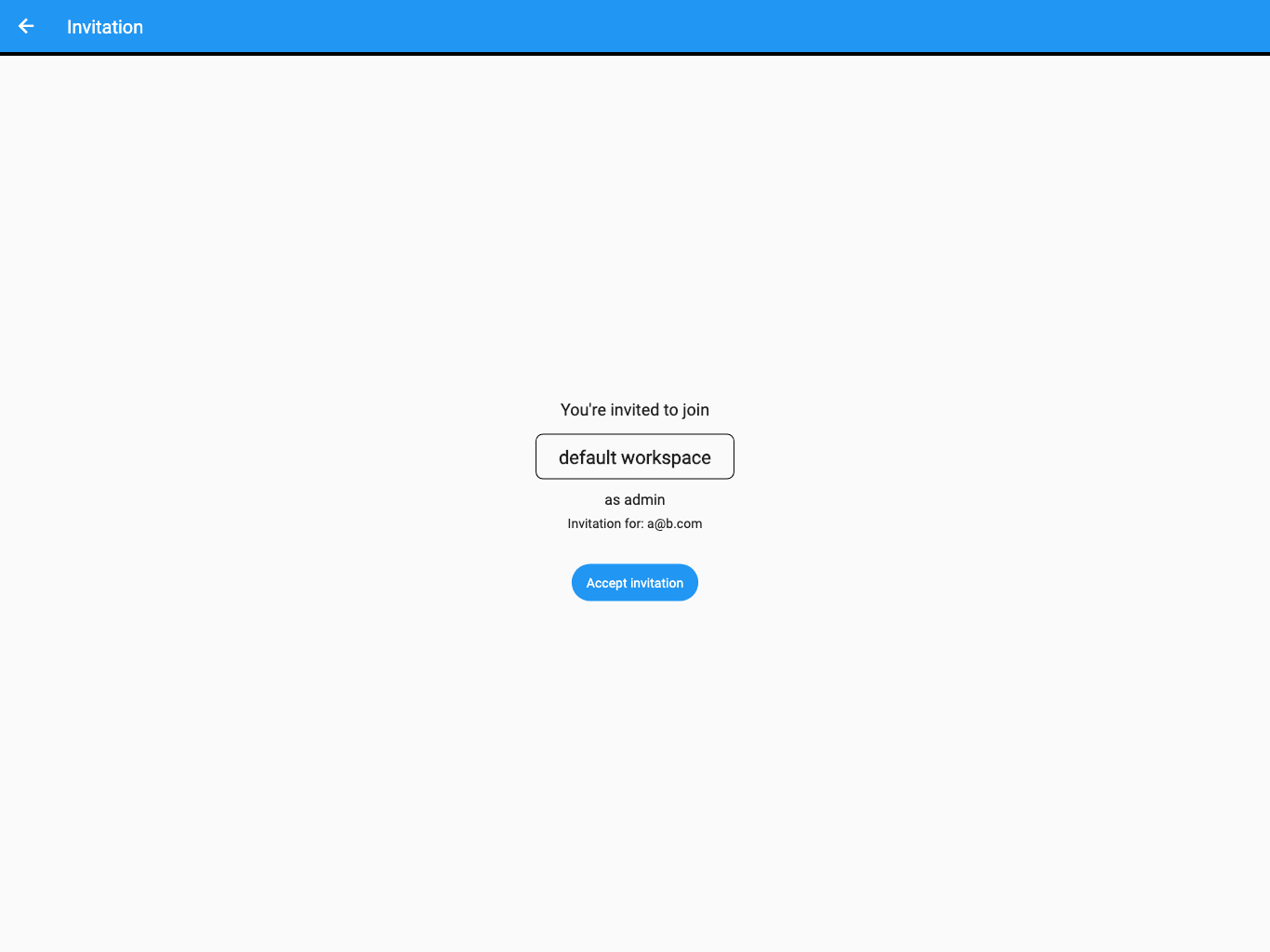
The screenshot uses synthetic test data.
Open the main menu. The workspace name should appear at the top. If another workspace is active, select the workspace name and choose the workspace you just joined.
3. Choose your AI agent
Section titled “3. Choose your AI agent”For this internal pilot, use one of these AI-agent entry points:
- OpenAI Codex, including the Codex app, CLI, and IDE integrations that share Codex MCP configuration.
- Claude Code, using its remote HTTP MCP configuration.
The connection uses a personal Culsma PAWS bearer token. Hosted ChatGPT and Claude connectors are not part of this pilot setup unless your organization has enabled them separately.
4. Create a personal MCP token
Section titled “4. Create a personal MCP token”The token identifies your Culsma PAWS account and carries only the permissions shown in the token form.
- In Culsma PAWS, open the main menu.
- Select Account.
- Find the MCP access-token panel.
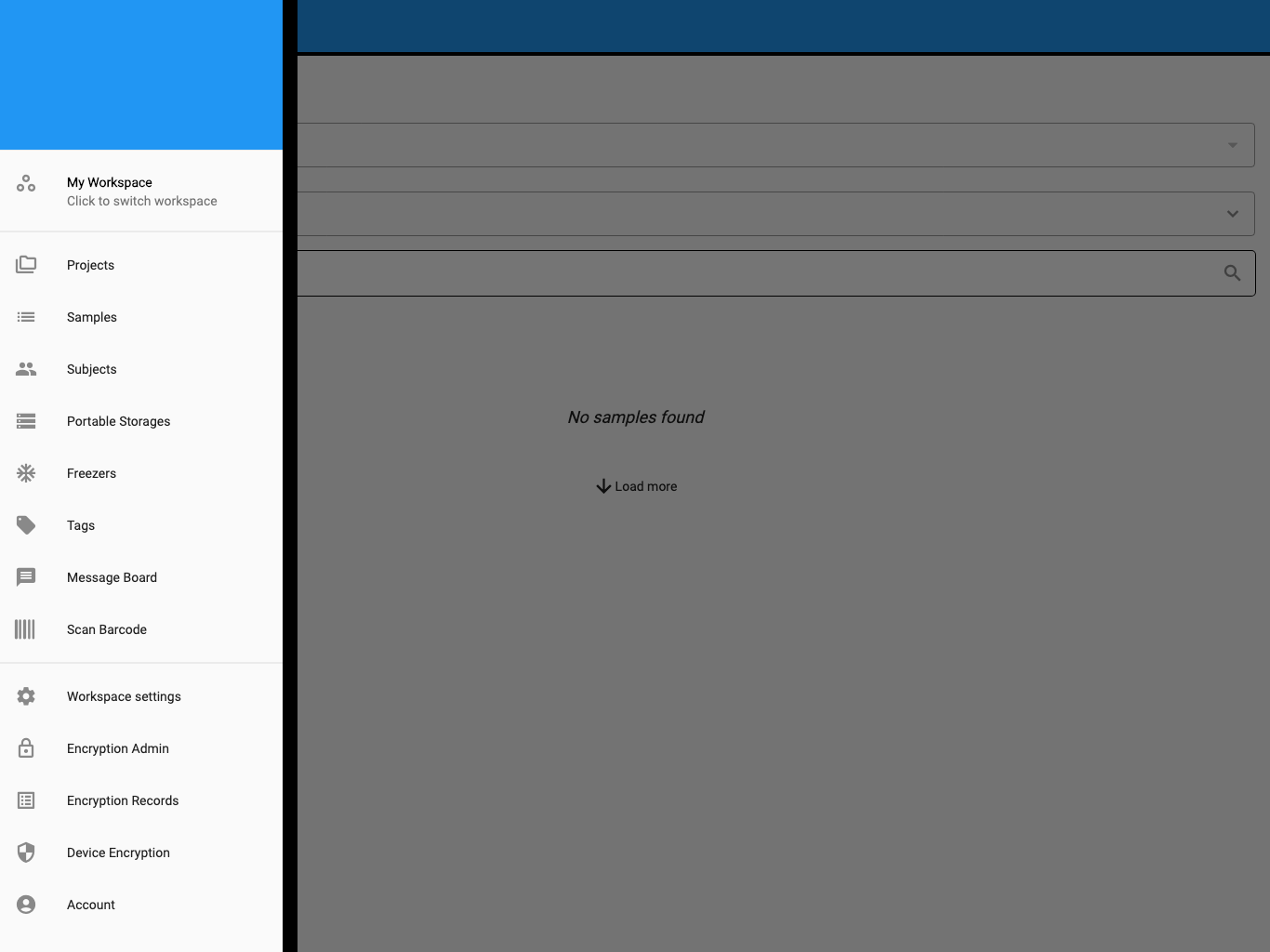
- In Label, enter a name that identifies the client, such as
Culsma PAWS - My AI client. - For this read-only quick start, use
lab.readin Scope. - Leave Days at the value approved by your organization.
- Select Create token.
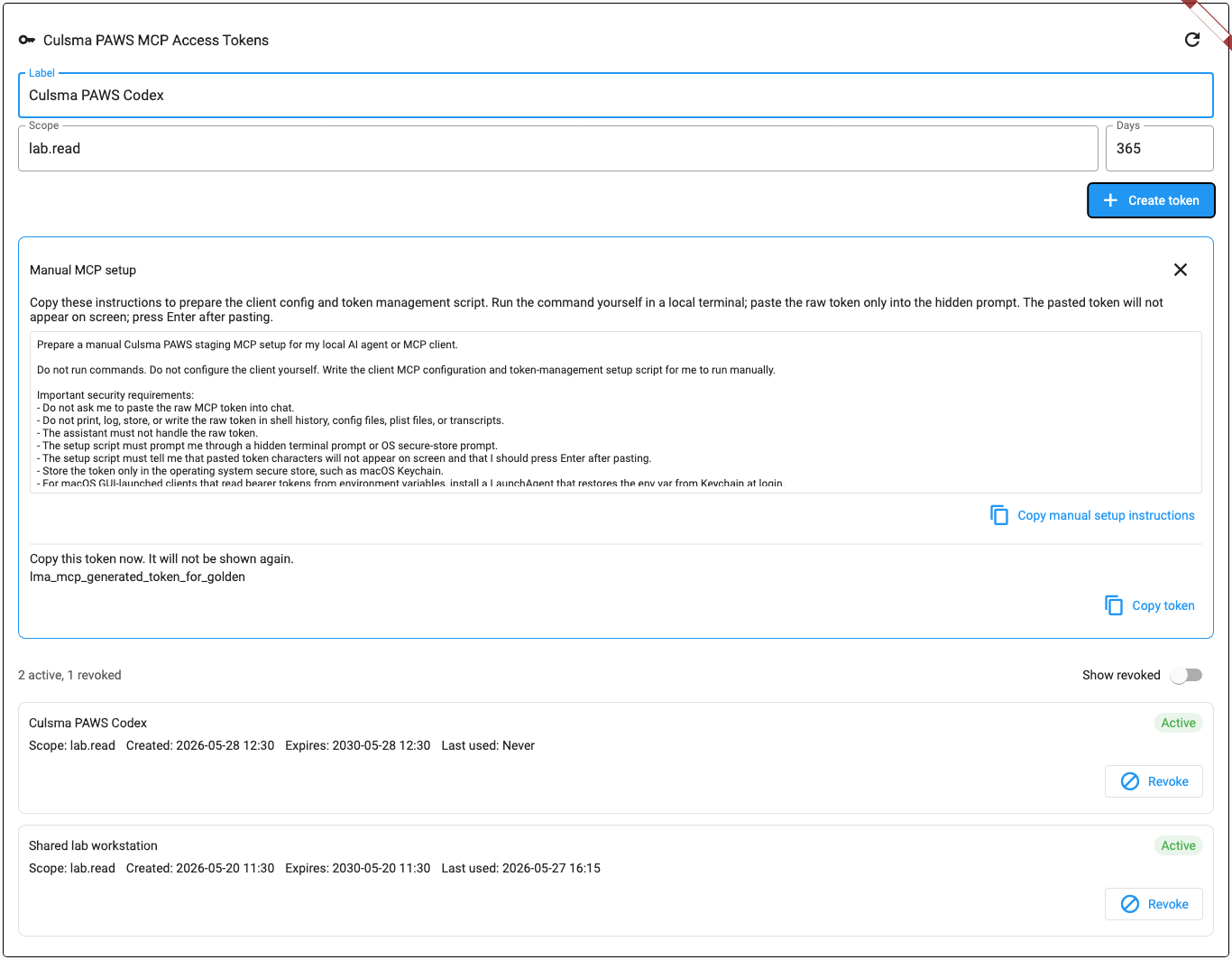
This pilot screenshot uses synthetic test data. Some labels may differ slightly from the current interface.
The newly created token is shown only once in the MCP access-token panel. Keep this page open until setup is complete.
5. Copy the setup request from this manual
Section titled “5. Copy the setup request from this manual”You no longer need to copy the long setup request from the Culsma PAWS interface. Copy the complete block below into your AI client. It contains connection instructions, but it does not contain your token.
Prepare a secure Culsma PAWS MCP setup for the AI agent I am currently using.
First identify whether I am using OpenAI Codex or Claude Code. If it is unclear, ask me before writing the setup. Do not run commands and do not configure the client yourself. Give me the complete client configuration and a setup command or script that I can run manually.
Security requirements:- Never ask me to paste the raw MCP token into this conversation.- Never print, log, or write the raw token into shell history, configuration files, scripts, transcripts, or plist files.- The AI assistant must not handle the raw token.- Prompt me for the token only through a hidden local Terminal prompt or the operating system's secure credential prompt.- Tell me that pasted token characters will not appear and that I must press Enter after pasting.- Store the token only in the operating system's secure credential store.- If a GUI-launched client reads bearer tokens from an environment variable, restore that variable securely from the operating system credential store at login.
Connection details:- Display name: Culsma PAWS- MCP server name: culsma-paws- Transport: Streamable HTTP- MCP URL: https://lamina-prod.lambdaencoding.com/mcp- Authentication: Authorization: Bearer <token>- Bearer token environment variable: CULSMA_PAWS_MCP_TOKEN
Generic MCP configuration shape:{  "mcpServers": {    "culsma-paws": {      "type": "streamable-http",      "url": "https://lamina-prod.lambdaencoding.com/mcp",      "headers": {        "Authorization": "Bearer ${CULSMA_PAWS_MCP_TOKEN}"      }    }  }}
Client-specific requirements:- For Codex, use the supported Codex MCP command or TOML configuration with the bearer-token environment variable shown above.- For Claude Code, use a user-scoped HTTP MCP configuration whose Authorization header reads `Bearer ${CULSMA_PAWS_MCP_TOKEN}`. Do not put the raw token in the command or configuration.- Do not substitute hosted ChatGPT or Claude connector instructions for this local AI-agent setup.
The JSON above is a portable reference, not a file that every client accepts directly. Adapt it to the current client. After writing the configuration and secure token setup, tell me exactly what I must copy, where I must run it, and how to confirm that Culsma PAWS is connected.
The setup request lets the AI agent translate the same connection details into the correct Codex or Claude Code configuration without handling your raw token.
Connection details
Section titled “Connection details”| Setting | Value |
|---|---|
| Display name | Culsma PAWS |
| Server name | culsma-paws |
| Transport | Streamable HTTP |
| MCP URL | https://lamina-prod.lambdaencoding.com/mcp |
| Authentication | Personal bearer token |
The MCP URL retains a previous internal service name for compatibility. It still connects to Culsma PAWS.
6. Store the token securely
Section titled “6. Store the token securely”Follow the setup returned by your AI client.
- Copy the complete setup command or script prepared by the AI client.
- Open your local Terminal and run it yourself.
- Wait for the hidden token prompt.
- Return to the open MCP token panel in Culsma PAWS and select Copy token.
- Paste the token into the hidden Terminal prompt and press Enter.
- Wait for the setup-complete message.
- Restart the AI client if instructed.
Nothing appears on screen while you paste into a hidden prompt. This is expected.
If your client provides its own secure credential field instead of a Terminal workflow, paste the token into that field. Confirm that the field is marked as sensitive and does not display or store the token as plain text.
7. Confirm the connection
Section titled “7. Confirm the connection”Confirm the connection in your AI agent:
- Codex: open Settings → MCP servers in the Codex app, or enter
/mcpin a Codex session. Confirm thatculsma-pawsis enabled. - Claude Code: enter
/mcpin Claude Code and confirm thatculsma-pawsshows as connected. You can also runclaude mcp listin a Terminal.
You can then ask:
List the Culsma PAWS workspaces I can access.
The returned list should include the workspace you joined. For client-specific details, see the official OpenAI MCP documentation or Claude Code MCP documentation.
8. Find your first sample
Section titled “8. Find your first sample”Start with a barcode supplied by your workspace owner or pilot coordinator. Replace the placeholder below with the real barcode.
Use Culsma PAWS to find sample [SAMPLE BARCODE]. Show its current storage location and available workspace, project, and subject context. Do not change any data.
A successful response identifies the matching sample and reports the location currently recorded in Culsma PAWS. If more than one result is possible, answer the AI client’s follow-up question before continuing.
9. Confirm the result in Culsma PAWS
Section titled “9. Confirm the result in Culsma PAWS”- Return to the Culsma PAWS web or app interface and make sure the correct workspace is active.
- Open Samples from the main menu.
- Set the search field to Barcode.
- Enter the same barcode and select the search icon.
- Open the matching sample.
- Compare the Sample ID and Storage values with the AI response.
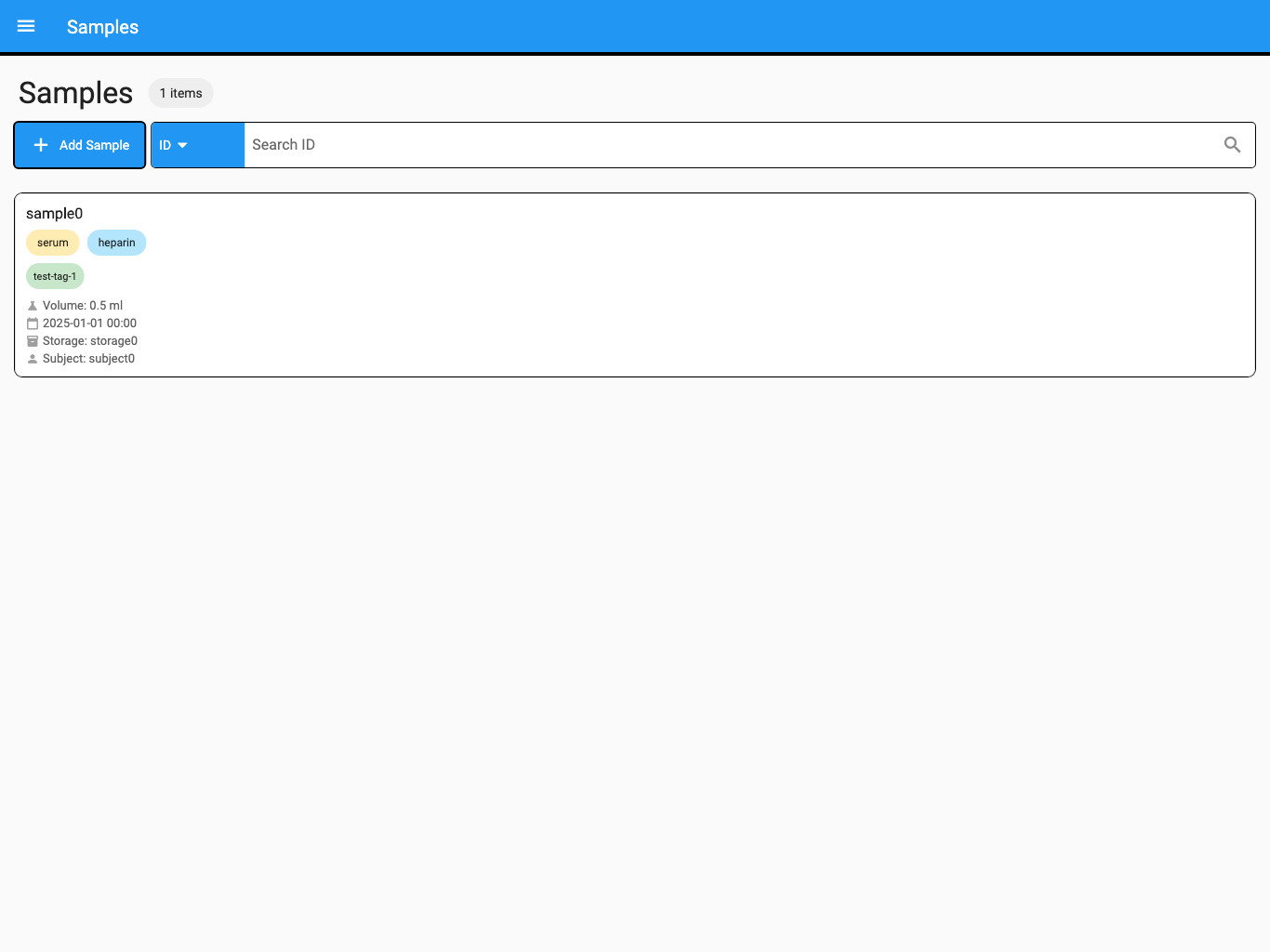
The screenshot uses synthetic test data.
You have completed Getting Started when:
- the AI client lists the workspace you joined;
- it finds the known sample without changing it; and
- the sample identity and storage in the AI response match Culsma PAWS.
If something does not work
Section titled “If something does not work”| What you see | What to do |
|---|---|
| No password email arrives | Check spam, confirm the email spelling, and ask the pilot coordinator to confirm that the account was registered. |
| This invitation was sent to a different email | Sign out and sign in with the exact email address shown in the invitation. |
| The invitation is invalid or expired | Ask the workspace owner for a new invitation. |
| The token disappears before setup is complete | Create a new token. Revoke the unused token from the token list. |
| Nothing appears when the token is pasted into Terminal | This is the secure hidden prompt. Press Enter after pasting. |
| Culsma PAWS is missing after setup | Restart the AI client, then check its MCP server or connector list again. |
| The client reports that authentication is required | Repeat the secure connection flow. Never paste the token into the AI conversation. |
| The workspace is missing | Confirm that you accepted the invitation with the correct email and selected the intended workspace. |
| The sample is not found | Check the barcode, confirm the active workspace, and ask whether the sample exists and is visible to your role. |
If a token may have been exposed, open Account, find it in the MCP access-token list, and select Revoke immediately.
Next, learn how to find and understand samples.