Accounts, Workspaces, and Permissions
Use this page to understand who can access a workspace and how that access is set up. It presents the workflow from two perspectives:
- Workspace member: join a workspace, confirm your access, switch context, and manage your own account connection.
- Administrator: invite people, assign the minimum Workspace role, change access, and remove members.
Administrator means Workspace Owner
Culsma PAWS has an admin Workspace role, but the current member-management workflow is available only to a Workspace Owner. An Admin can perform supported administrative laboratory-data actions, but cannot invite Workspace members, change their Workspace roles, or remove them.
How effective access is decided
Section titled “How effective access is decided”Access is layered. Passing one layer does not bypass another.
| Access layer | What it controls | Who manages it |
|---|---|---|
| Account identity | Who is signed in and which invitation email can be accepted. | Each user; pilot coordinator for initial account registration. |
| Workspace membership and role | General access to operational laboratory data and actions. | Workspace Owner in Workspace settings. |
| Lab Project access | Visibility of a private Lab Project and project-level actions. | Lab Project Owner or Project Admin. |
| Analytics Project role | Reader, Writer, Publisher, and analytics-governance access. | Workspace Owner through the AI Agent and MCP. |
| Personal MCP token scope | Which Culsma PAWS capabilities an AI client may request for that user. | Each user from Account. |
A personal MCP token never grants a role that the user does not already have. A broad Workspace role also does not automatically grant access to a private Lab Project or Analytics Project.
Workspace roles
Section titled “Workspace roles”Choose the lowest role that supports the person’s normal work.
| Workspace role | Typical use | Current access boundary |
|---|---|---|
| Viewer | People who need to look up samples, subjects, tags, and storage. | Read-only access to supported Workspace data and public Lab Projects. |
| Editor | People who maintain routine laboratory records. | Viewer access plus supported create and edit actions. |
| Admin | People responsible for higher-risk laboratory-data operations. | Editor access plus supported administrative actions, including certain deletions. Does not manage Workspace members or invitations. |
| Owner | The person responsible for the Workspace and its membership. | Admin capabilities plus Workspace settings, invitations, role changes, member removal, and owner-only governance actions. |
Workspace roles and Lab Project roles use some of the same names, but they are different grants. Public Lab Projects are visible to Workspace members. Private Lab Projects require an explicit project role; their Owner or Project Admin manages that membership.
Where each workflow happens
Section titled “Where each workflow happens”| Task | Current entry point |
|---|---|
| List your workspaces or review Workspace members | AI Agent through MCP, read-only. |
| Accept an invitation | Culsma PAWS Web/App invitation page. |
| Switch the active Workspace | Culsma PAWS Web/App Workspace selector. |
| Update your username or manage personal MCP tokens | Account in Culsma PAWS Web/App. |
| Invite a Workspace member | AI Agent through MCP with a preview and explicit approval, or Workspace settings in Culsma PAWS Web/App; Workspace Owner only. |
| Change a Workspace role or remove a member | Workspace settings in Culsma PAWS Web/App; Workspace Owner only. |
| Grant or revoke Analytics Project roles | AI Agent through MCP; Workspace Owner only. |
The current Workspace MCP tools can list workspaces, fetch Workspace details, list members, and let an Owner preview and confirm an invitation. They do not change Workspace roles, remove members, or switch the active Workspace.
Member workflow
Section titled “Member workflow”1. Activate the correct account
Section titled “1. Activate the correct account”Use the email registered for the internal pilot. The current sign-in page does not provide public self-registration.
If you have not activated the account, follow Getting Started. Your account email is also the identity used to validate Workspace invitations.
2. Accept the Workspace invitation
Section titled “2. Accept the Workspace invitation”- Open the invitation link sent by the Workspace Owner.
- Sign in with the exact email address shown on the invitation.
- Review the Workspace name, assigned role, and invited email.
- Select Accept invitation.
- After the confirmation appears, select Go to workspace.
Accepting an invitation adds the membership and makes the joined Workspace active. Invitations normally expire after seven days. An invalid, expired, already-used, or email-mismatched invitation must be corrected before access is created.
3. Confirm your Workspace and role
Section titled “3. Confirm your Workspace and role”Ask your AI Agent:
List the Culsma PAWS workspaces I can access. Fetch the active Workspace, then list its members and show only my own member record and Workspace role. Do not change anything.Check that the response contains the expected Workspace identifier and your assigned role. The AI Agent may review access, but it cannot change the role.
4. Switch the active Workspace
Section titled “4. Switch the active Workspace”The active Workspace determines which samples, Lab Projects, storage records, and changes are used by normal Culsma PAWS tasks.
- Open the main menu in Culsma PAWS Web/App.
- Select the Workspace name at the top.
- Choose the intended Workspace under Your Workspaces.
- Return to the AI Agent and run the confirmation request again.
Do not continue a write workflow until the AI Agent reports the intended active Workspace.
5. Manage your account and AI connection
Section titled “5. Manage your account and AI connection”Open the main menu and select Account. From this page you can:
- review the signed-in email and user identifier;
- update your username;
- create a personal MCP token for an AI client;
- review active, expired, or revoked token records;
- revoke an unused or exposed token; and
- sign out.
Create a separate MCP token for each AI client or device. Use only the scopes required for your work:
lab.readfor operational read-only tasks;lab.writefor supported laboratory-data changes;lab.analytics.readfor Analytics Project queries; andlab.analytics.writefor authorized analytics changes.
Never send a personal token to the Workspace Owner or support. If the token may have been exposed, revoke it from Account, create a replacement, and configure the AI client again.
6. Request additional access
Section titled “6. Request additional access”When a task is denied, ask the AI Agent to identify the failed access layer:
Without changing anything, explain why I cannot complete [TASK]. Identify whether the missing requirement is my active Workspace, Workspace role, Lab Project access, Analytics Project role, or MCP token scope. Show the exact Workspace or Project involved.Send the Workspace Owner only the project name or identifier, the task you need to perform, and the missing role. Do not send passwords or tokens.
Administrator workflow (Workspace Owner)
Section titled “Administrator workflow (Workspace Owner)”1. Plan the minimum access
Section titled “1. Plan the minimum access”Before inviting someone, record:
- the exact email registered for that person;
- the intended Workspace;
- whether the person needs Viewer, Editor, Admin, or Owner access;
- any private Lab Projects they need; and
- any Analytics Project Reader, Writer, or Publisher roles they need.
Do not use a Workspace role as a substitute for project-specific access. Avoid Owner unless the person genuinely needs to administer Workspace membership. The current interface does not provide a formal ownership-transfer workflow.
2. Open Workspace settings
Section titled “2. Open Workspace settings”- Make the intended Workspace active.
- Open the main menu.
- Select Workspace settings.
- Confirm the Workspace Name and Workspace ID before changing membership.
- Review the current Workspace Members list.
Only a Workspace Owner sees the Workspace settings menu entry.
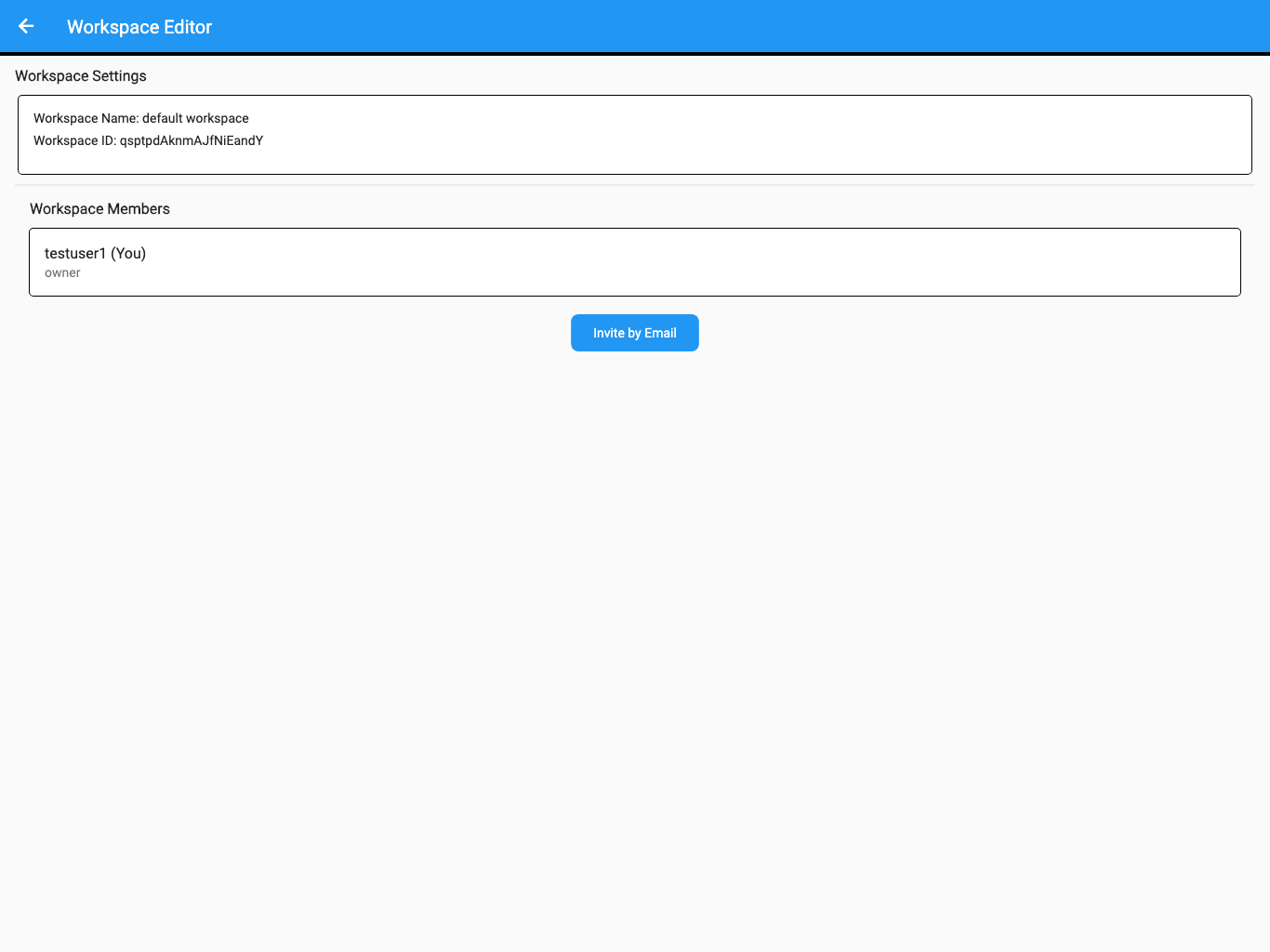
The screenshots on this page use synthetic test data.
3. Invite a member through your AI Agent
Section titled “3. Invite a member through your AI Agent”Use the exact email and minimum access from your plan:
In the active Culsma PAWS Workspace, prepare an invitation for [EMAIL] with Workspace role [ROLE]. Include relational access and any Analytics Project role I explicitly name. Show the exact Workspace, recipient email, access plan, expiry, external-email warning, and rollback limitation. Do not send the invitation until I approve the change preview.The AI Agent must return a staged change preview. Before approving it, check:
- the active Workspace name and identifier;
- the exact recipient email;
- the Workspace role and relational access;
- any Analytics Project identifier and role;
- the expiry period; and
- the warning that confirmation sends an external email.
Only a Workspace Owner with the required MCP write permission can preview or commit this invitation. Admin, Editor, and Viewer roles cannot invite members.
If the preview is wrong, ask the AI Agent to cancel it. If it is correct, approve only that change-set identifier:
I approve Workspace invitation change set [CHANGE SET ID] exactly as shown. Commit it, then report the invitation status and mutation ID without exposing the invitation token or link.Confirmation creates the pending invitation and sends the email. If the recipient has not accepted it, the Owner can inspect the invitation mutation and revert it. Reverting invalidates the pending link and records a compensating mutation, but it cannot remove an email already delivered. It also cannot remove a membership after the invitation has been accepted.
Optional: Invite a member in Web/App
Section titled “Optional: Invite a member in Web/App”- Select Invite by Email.
- Enter the person’s exact registered email address.
- Select the minimum Workspace role required for their work.
- Select Send Invitation.
- Copy the generated invitation link and share it only with the intended recipient through an approved channel.
- Ask the recipient to sign in with the invited email and accept the invitation.
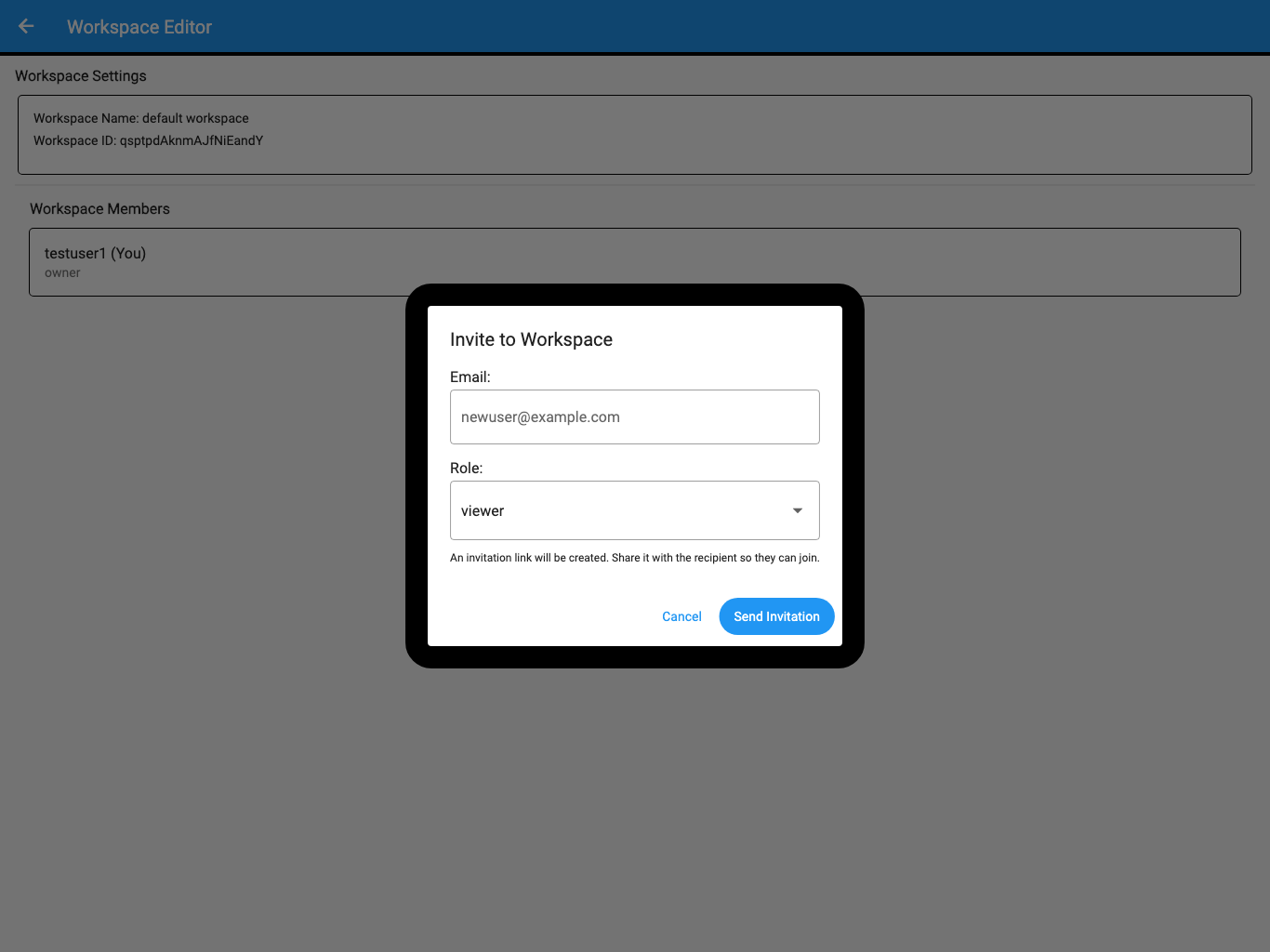
Creating or confirming an invitation does not prove that the user has joined. The membership becomes active only after the intended user accepts the link with the matching email.
4. Verify the accepted membership
Section titled “4. Verify the accepted membership”Refresh Workspace settings and confirm that the person appears under Workspace Members with the intended role. You can also ask the AI Agent for a read-only check:
In the active Culsma PAWS Workspace, list the member whose email is [EMAIL]. Show the canonical user identifier and current Workspace role. Do not change membership.If the member does not appear, do not create repeated invitations until you know whether the original link is pending, expired, already used, or tied to another email.
5. Change a Workspace role
Section titled “5. Change a Workspace role”- In Workspace Members, find the exact person.
- Select the new role from that person’s role menu.
- In Change Role, compare the user identifier, old role, and new role.
- Select Confirm.
- Refresh the member list and verify the new role.
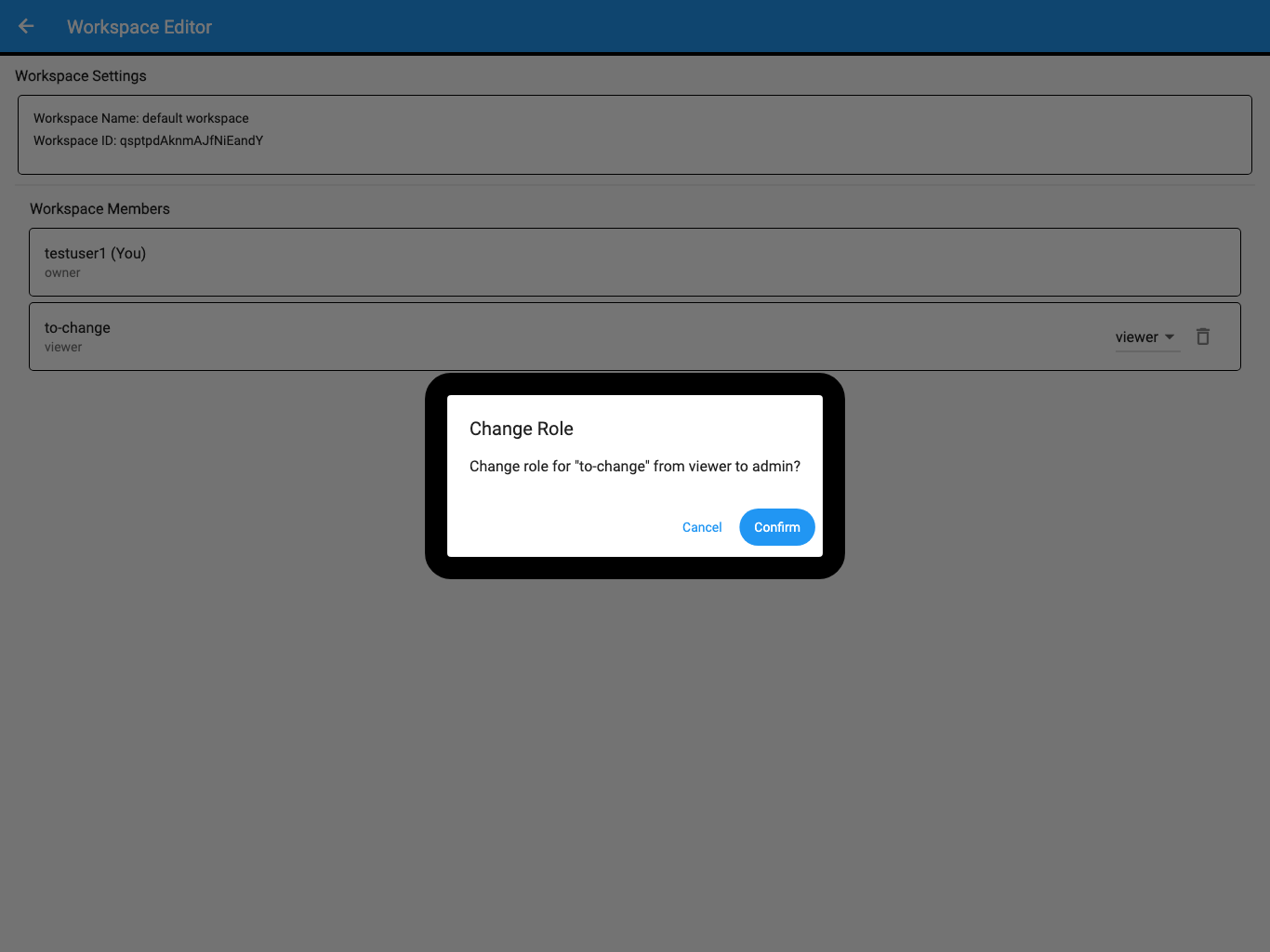
A role change affects future authorized requests. It does not change a person’s personal MCP token scope, private Lab Project grants, or Analytics Project roles.
6. Remove a Workspace member
Section titled “6. Remove a Workspace member”Before removal, review any private Lab Project and Analytics Project grants held by the person. Those grants are separate records and should be cleaned up as part of the same access review.
- Find the exact member in Workspace Members.
- Select the delete icon on that member’s row.
- In Remove User from Workspace, verify the user identifier and current role.
- Select Remove.
- Refresh the member list and confirm that the user is absent.
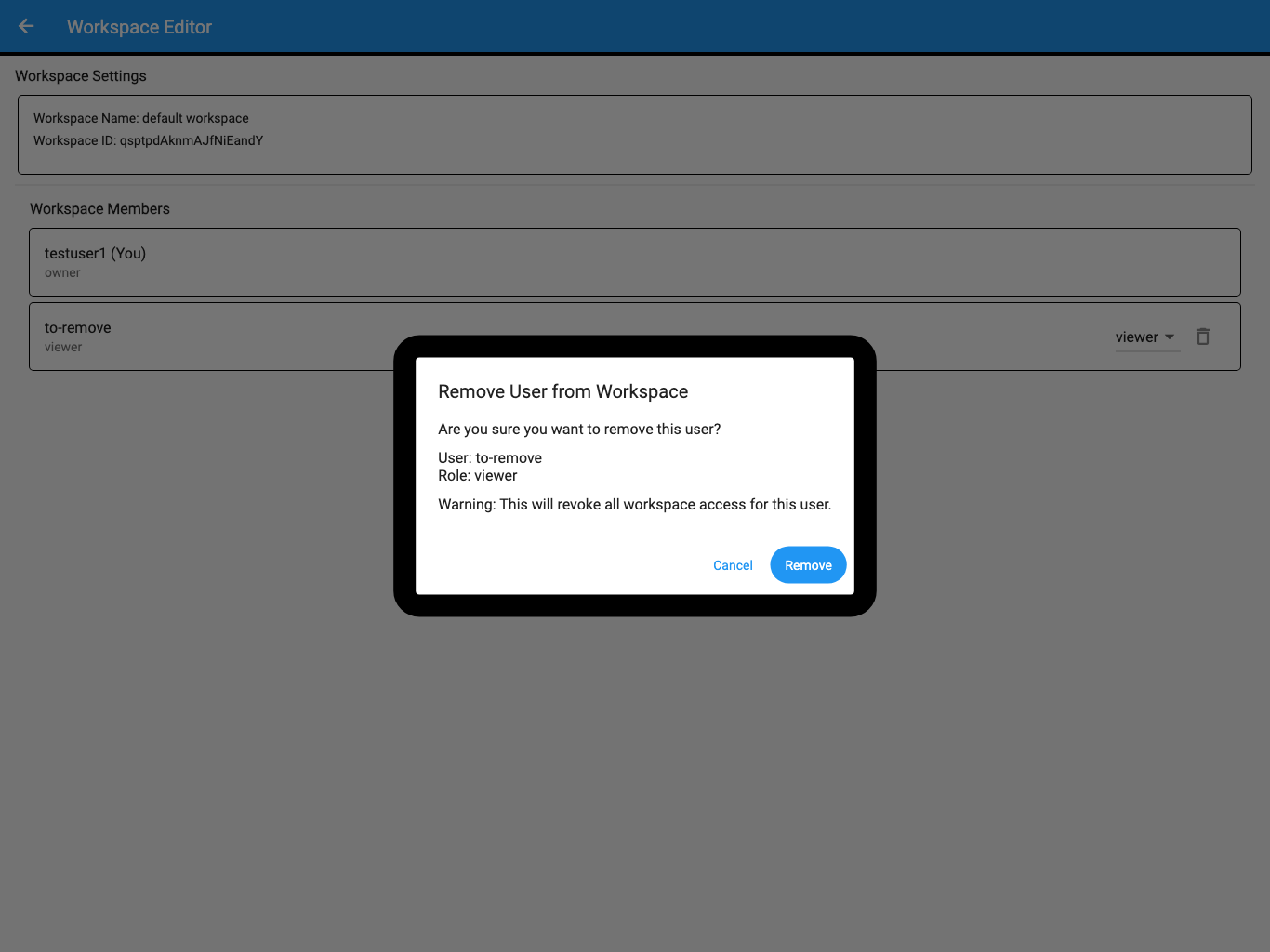
Removing membership revokes access to the Workspace. It does not delete laboratory records created by that person and should not be described as data deletion.
7. Complete project-specific access
Section titled “7. Complete project-specific access”Workspace membership is the prerequisite, not the entire permission setup.
- For a private Lab Project, its Project Owner or Project Admin must add the Workspace member and assign the appropriate project role.
- For an Analytics Project, the Workspace Owner grants Reader, Writer, or Publisher access through the AI Agent. Follow Share and Govern an Analytics Project.
- The user creates or replaces their own MCP token from Account. An administrator should never collect or configure another person’s token.
Access review checklist
Section titled “Access review checklist”For each person, verify:
- the account uses the intended email;
- Workspace membership is active;
- the Workspace role is the minimum needed;
- private Lab Project access is explicitly assigned where required;
- Analytics Project roles match the analytics task;
- the user has created their own appropriately scoped MCP token; and
- removed or changed access has been verified from the member or project list.
If access cannot be completed
Section titled “If access cannot be completed”| What you see | What to do |
|---|---|
| Workspace settings is missing | Confirm that the intended Workspace is active and that you are its Owner. Admin is not sufficient. |
| The invitation email does not match the signed-in account | Sign out and use the exact invited email, or ask the Owner to create a corrected invitation. |
| The invitation is invalid, expired, or already used | Ask the Workspace Owner for a new invitation. |
| The user accepted the invitation but the Workspace is missing | Refresh the session, open the Workspace selector, and verify membership with the AI Agent. |
| A Viewer cannot change data | Change the Workspace role only if the person’s job requires write access. |
| An Admin cannot invite or remove members | This is expected; only a Workspace Owner manages Workspace membership. |
| A Workspace member cannot see a private Lab Project | Ask that Project’s Owner or Project Admin to add the member. |
| A Workspace member cannot use an Analytics Project | Grant the required Analytics Project role separately. |
| The AI Agent can read but cannot write | Compare the Workspace or project role with the personal MCP token scope. Both must allow the action. |
| A removed user is still listed in a Project grant | Remove or revoke the separate Project grant and verify the list again. |
Access setup is complete when the user can confirm the correct active Workspace and perform the intended task—without receiving broader Workspace, project, analytics, or token permissions than required.
For connection setup, see Getting Started. For role definitions and token scopes, see Reference.