Manage Boxes, Samples, and Labels
Use this page for portable-storage boxes, sample positions, barcode scanning, and label printing. Start in your AI Agent to locate samples, find unassigned records, or prepare a governed sample-to-box assignment. Use Web/App for the visual box layout and physical label workflow.
Location searches are read-only. Assigning or moving a sample to a box position is a write task and requires an approved change set when performed through the AI Agent.
Before you start
Section titled “Before you start”You need:
- the correct Culsma PAWS workspace selected;
- the exact sample and box barcodes or canonical identifiers;
- the intended row and column position; and
lab.writeaccess plus an authorized role for changes.
Confirm the physical barcodes before relying on a record. Similar box names or partial sample matches are not enough for a move.
Start in your AI Agent
Section titled “Start in your AI Agent”For a read-only box check:
Use Culsma PAWS to show every sample recorded in box [BOX BARCODE], including each sample barcode and position. Also show the box's recorded freezer location when available. Do not change any data.To prepare a sample placement:
Use Culsma PAWS to place sample [SAMPLE BARCODE] into box [BOX BARCODE] at position [POSITION]. Resolve the exact sample, box, current position, and target occupancy first. Prepare a PRODUCTION preview only and stop for my approval. Do not commit the assignment yet.The AI Agent should show the current and proposed box position, affected sample and box records, warnings, and change-set expiry.
Review a sample placement
Section titled “Review a sample placement”| Preview item | What to check |
|---|---|
| Sample | Exact barcode, canonical identifier, and current storage state. |
| Box | Exact box identifier, dimensions, and current freezer context when recorded. |
| Position | Correct row and column and whether the target is available. |
| Movement | Any removal from a previous box position is shown explicitly. |
| Physical state | The sample, box, and visible position in front of you match the preview. |
Coordinate the recorded update and physical move according to your laboratory procedure. If either step fails, stop and mark the discrepancy until the physical and recorded positions agree.
After commit, ask the AI Agent to fetch the sample and box again. Confirm the complete box position and freezer path.
Continue in Web/App: Use the box layout
Section titled “Continue in Web/App: Use the box layout”- Open the intended portable-storage box.
- Confirm the box name, dimensions, and current samples.
- Search for an exact sample barcode or another supported identifier.
- Compare stored, unassigned, and search-result groups before selecting a sample.
- Place or move the sample into the intended visual position.
- Reopen the box after saving and confirm the sample card appears in the correct cell.
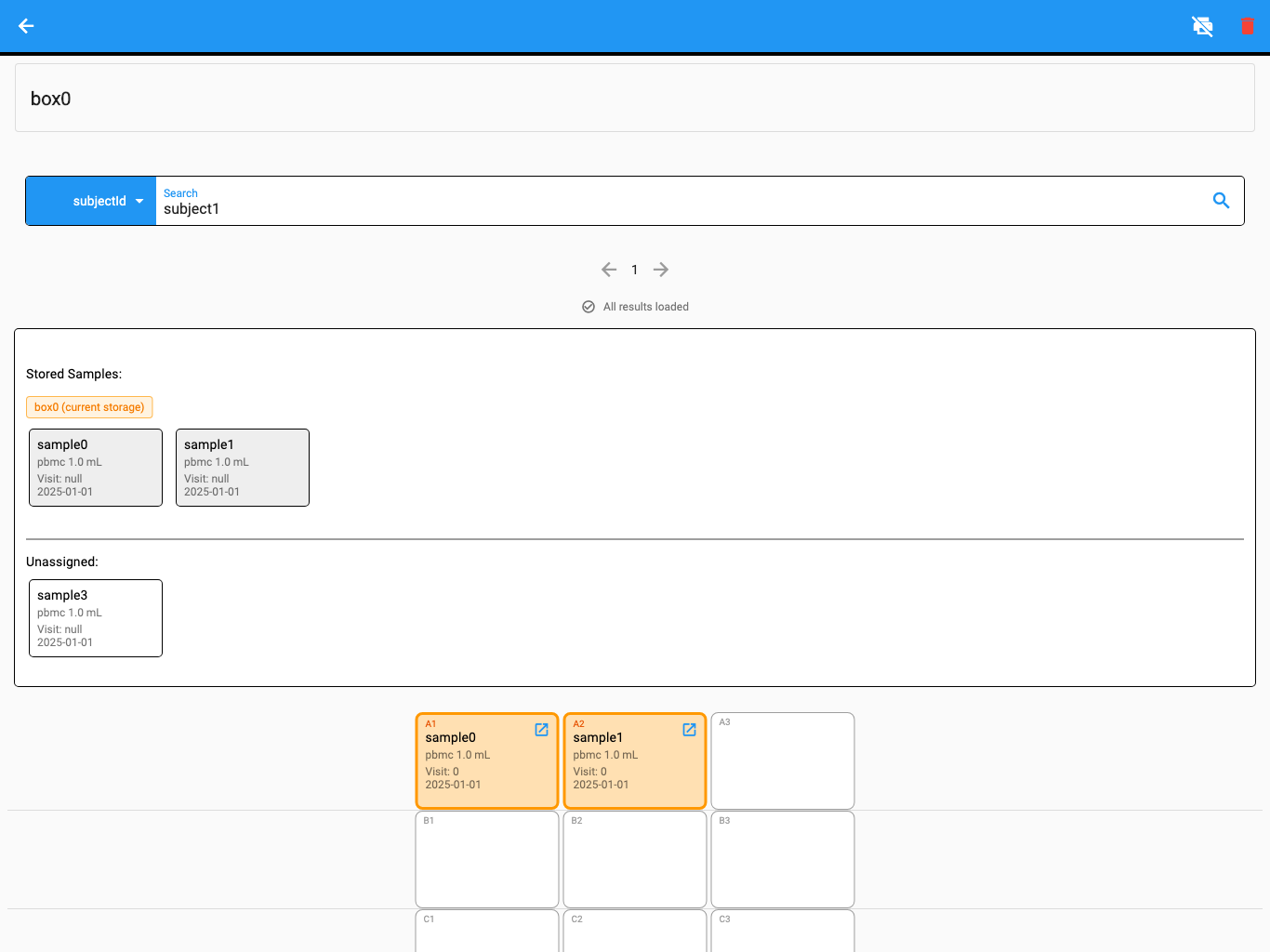
The screenshot uses synthetic test data.
Barcode scanning is useful at the bench, but always compare the decoded record with the visible sample and box labels before moving anything.
Continue in Web/App: Print labels
Section titled “Continue in Web/App: Print labels”- Open the sample or portable-storage box containing the samples.
- Select the exact samples to print.
- Confirm the connected printer, label type, and number of copies.
- Review the final print confirmation and select Print.
- Check the printed barcode and visible sample identity against Culsma PAWS before applying the label.
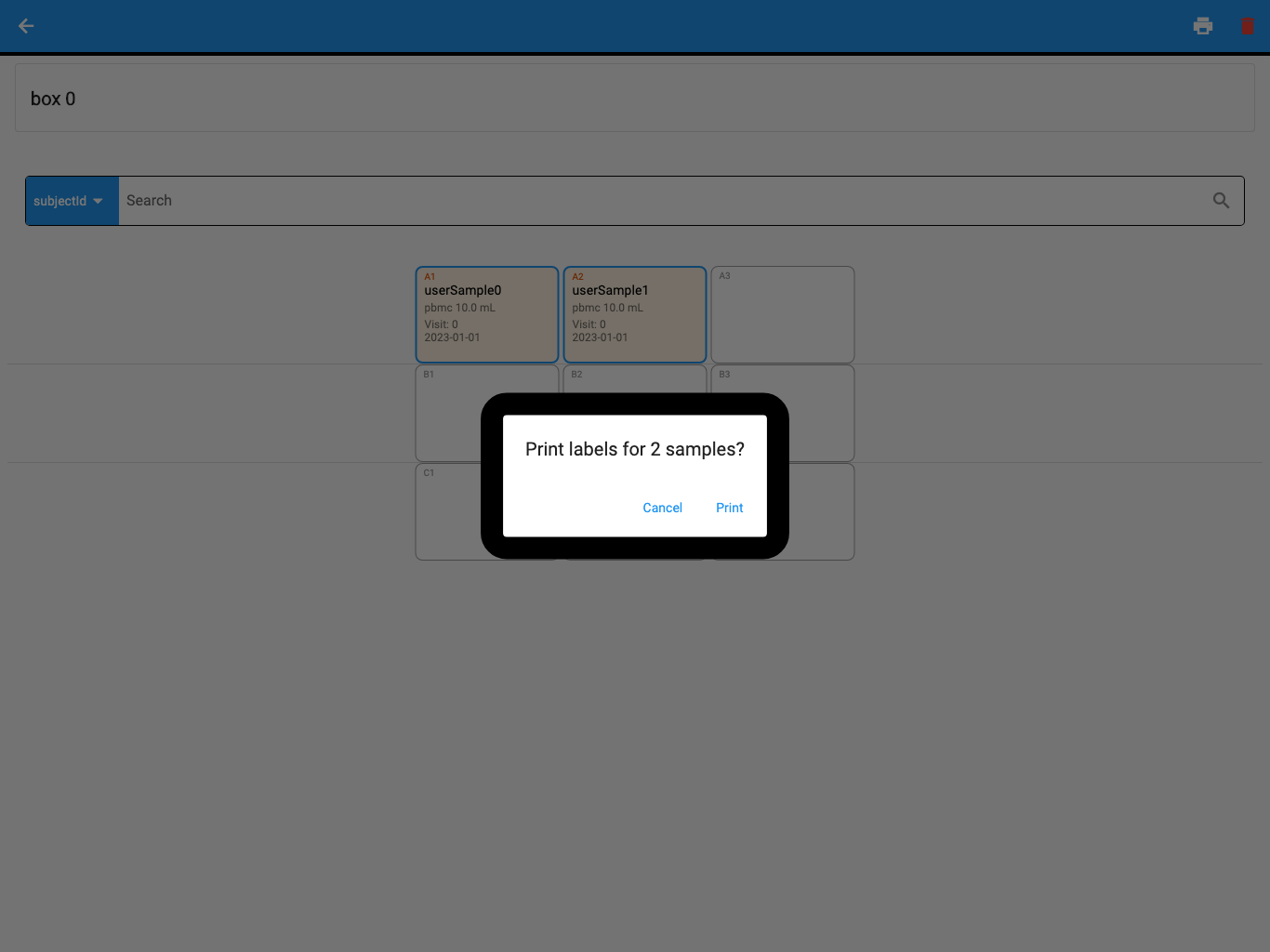
The screenshot uses synthetic test data.
Never cover or discard the existing identity label until the replacement has been scanned and verified.
More requests to try
Section titled “More requests to try”List samples in this workspace without an assigned box position. Separate Unassigned from records whose location is Unknown.
Show every sample in box PBMC-04, including barcode, sample type, and position.
Find an available position in box PBMC-04 for sample PAWS-021. Do not assign it; show the evidence used to identify the position.
Prepare a preview to move sample PAWS-021 from its current box to PBMC-04 position B3. Include all current and proposed storage values.
If the box or label task cannot continue
Section titled “If the box or label task cannot continue”| What you see | What to do |
|---|---|
| The barcode matches several records | Stop and resolve the canonical record before moving or printing anything. |
| The location is Unassigned | Confirm whether the sample is physically awaiting placement before assigning it. |
| Part of the path is Unknown | Inspect the physical sample, box, and related records; do not invent the missing relation. |
| The target position is occupied | Choose another position or explicitly review the intended movement. |
| The box changed after preview | Reopen it and prepare a new preview from current state. |
| Physical and recorded positions disagree | Do not continue normal work with the sample; record the discrepancy and prepare a verified correction. |
| The printer is unavailable | Reconnect or select the approved printer; do not send repeated blind print jobs. |
| A printed label does not scan correctly | Destroy or quarantine the incorrect label and print a verified replacement. |
You have completed the task when the physical sample, box position, visible label, and complete Culsma PAWS location agree.
For freezer and rack work, continue to Manage Freezers and Racks. For read-only sample context, return to Find and Understand Samples.